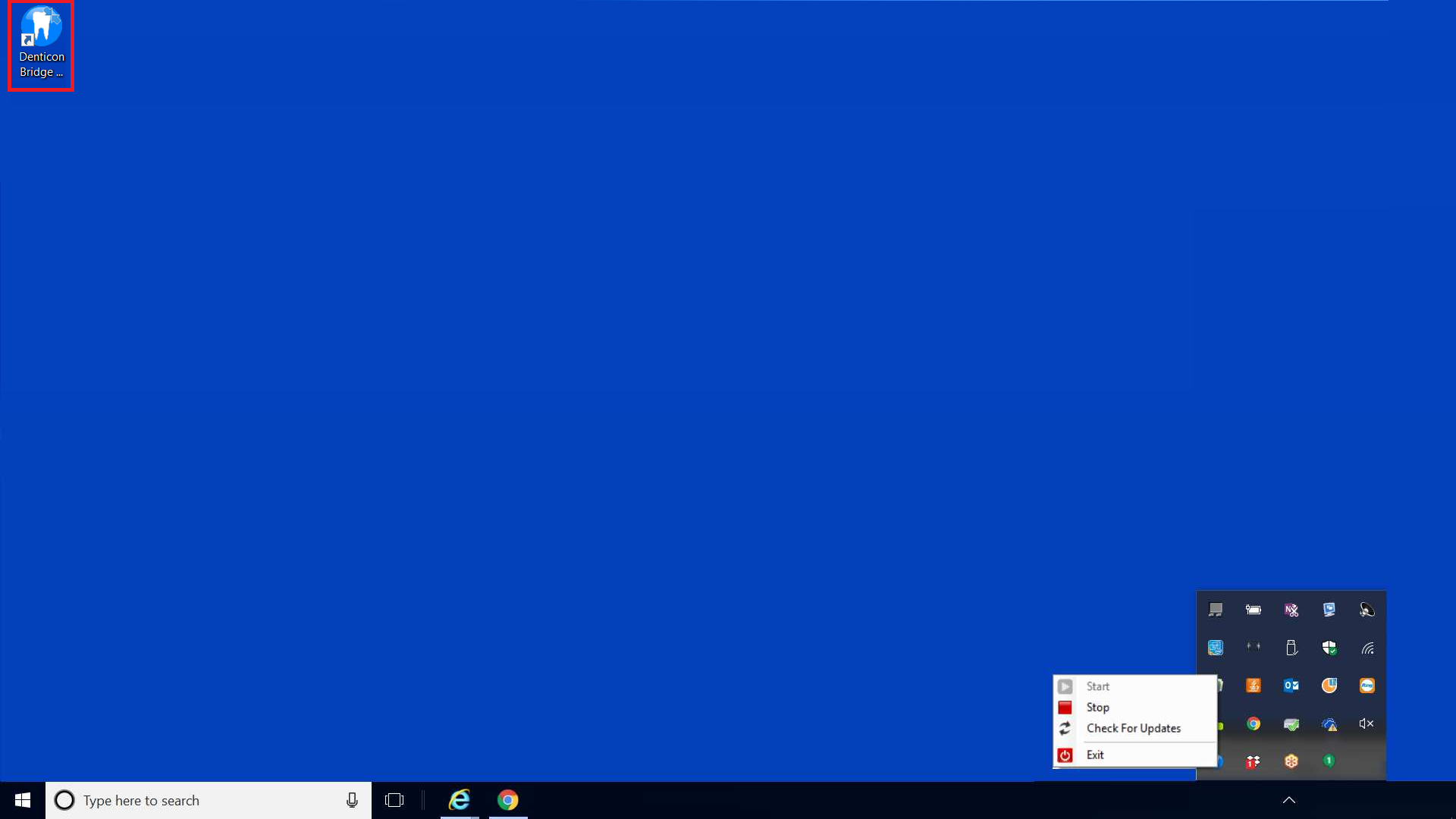
When using Google Chrome, Denticon bridges to the separate imaging software via a different connection than when using Denticon’s recommended web browser Internet Explorer.
The Google Chrome web browser requires the “Denticon Bridge Service”:
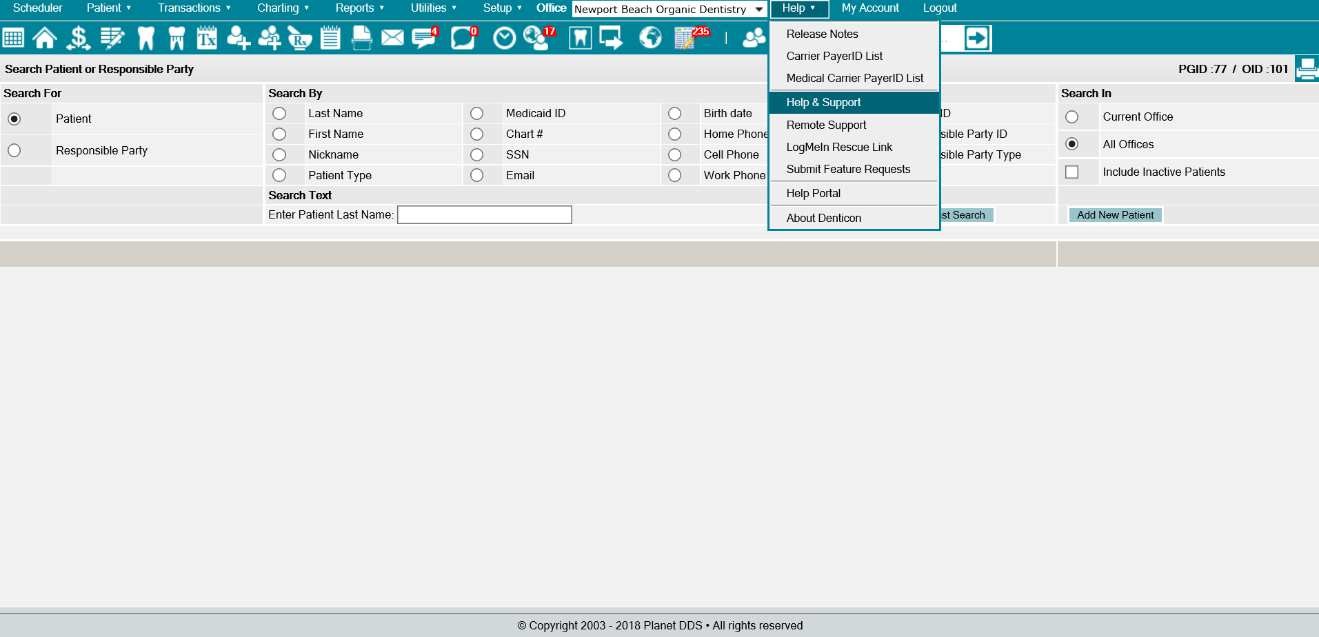
- Click the word “Help”
- Select the “Help & Support” option from the drop-down list
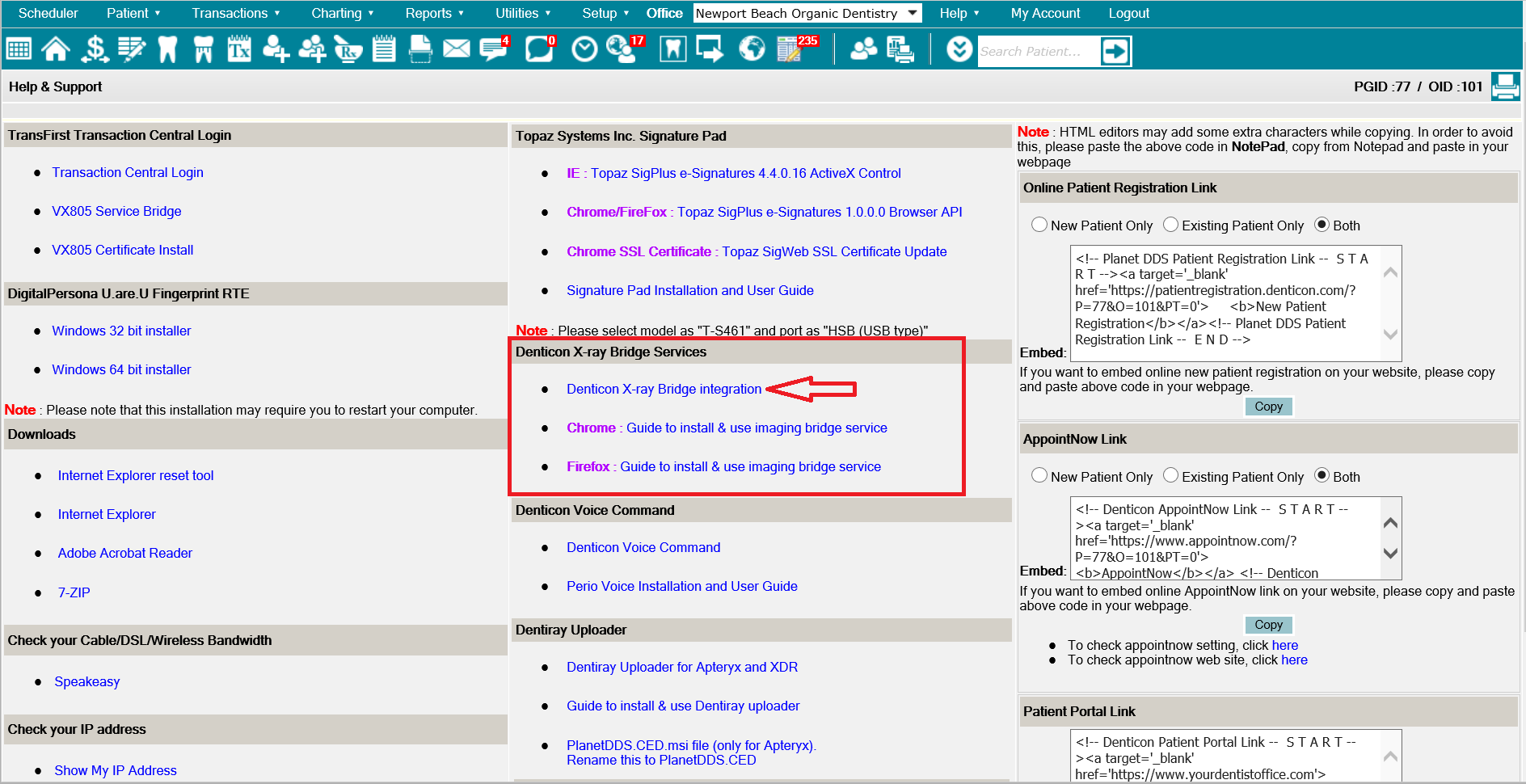
- Click the “Denticon X-ray Bridge Integration” hyperlink to download the installer to the computer
For more information about the installation and usage, click the “Chrome: Guide to install & use image bridging service” hyperlink.
Once the service is installed the bridge:
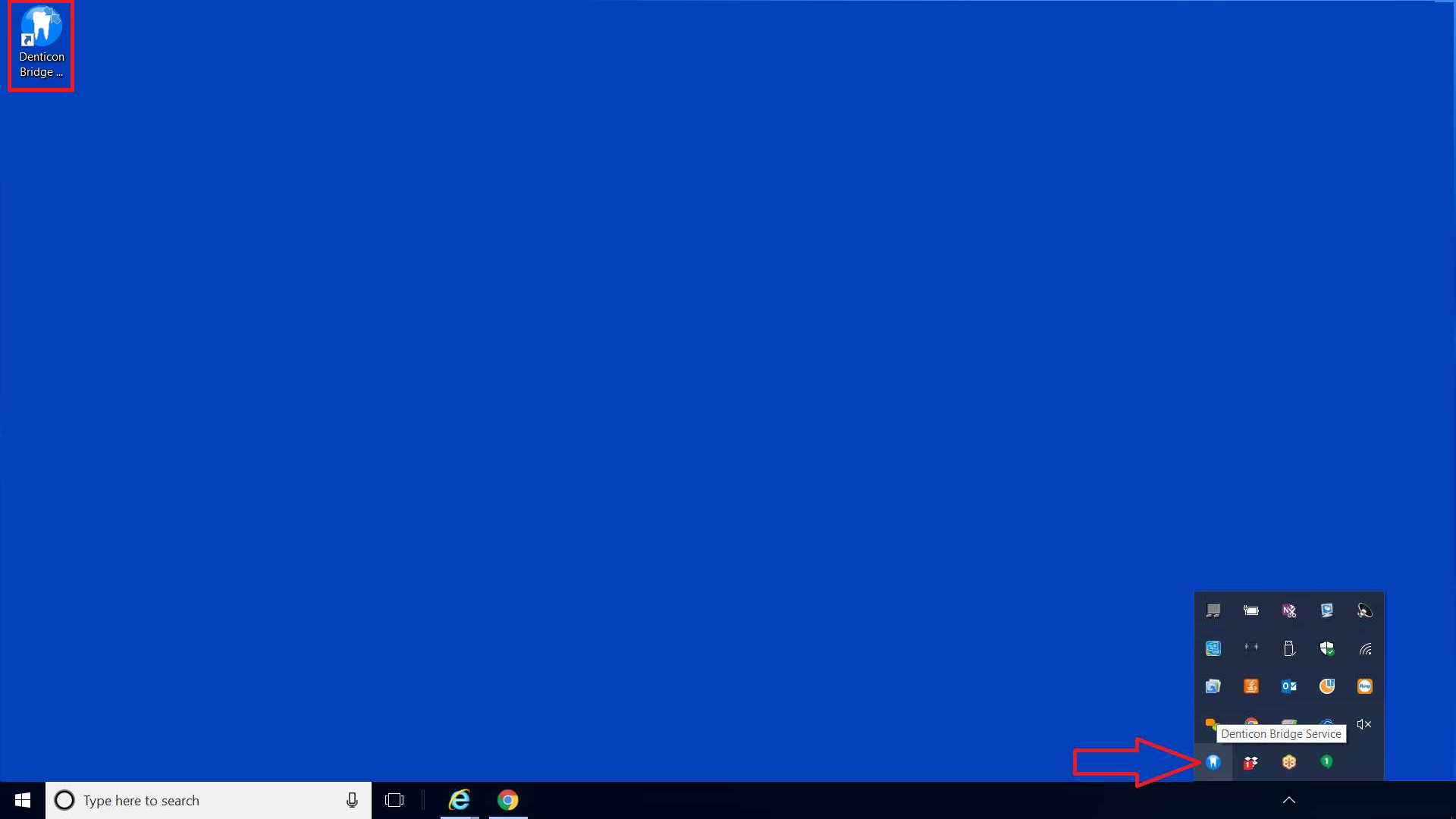
- an icon will be created within the computer’s taskbar
- a program shortcut is created on the desktop
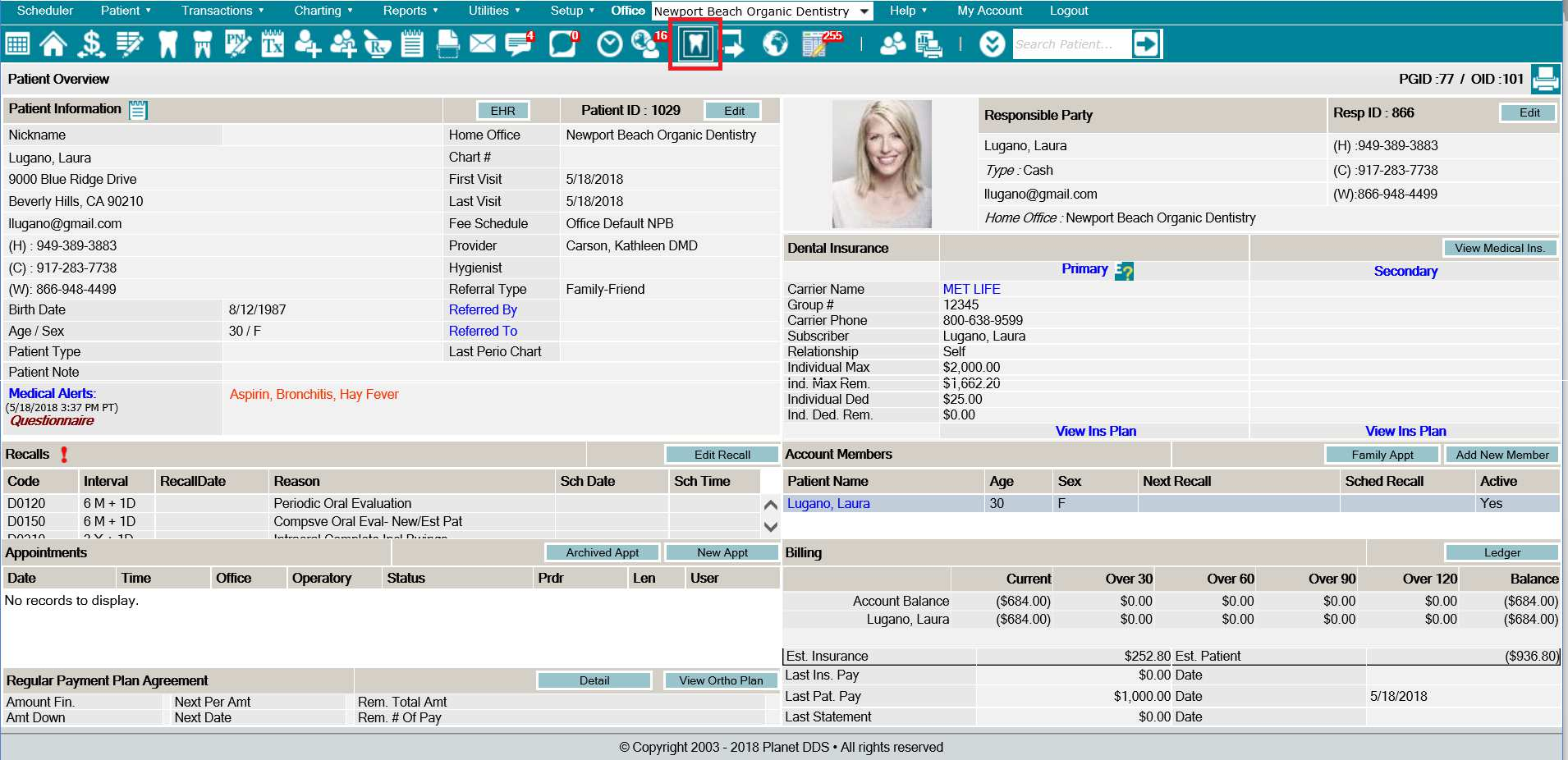
- the separate imaging software is able to launch using Denticon’s imaging bridge icon
If the imaging bridge stops when using Google Chrome:
- Right-click the icon in the taskbar
- Select the “Check for Updates” option
- Select the “Start” option